Restoring TFS 2012 to Sandbox
One of my clients recently asked for some help with getting their TFS server up to snuff. After getting the software itself in line, I needed to restore a TFS installation in a sandbox environment to plan and test out some significant changes to their Work Item data. It’s not exactly a smooth experience so lets hope this eases the day of some other poor soul. As with all things – SSDs make this a bearable duration of time.
Step 1: Install, but don’t configure TFS 2012 Update 3
TFS server components have levels of installation doneness. Since this is a sandbox, I’m not worried about scaling out and will just install a single server. To do this I:
- (15 min) Install Windows Server 2012 Standard on a VM
- (60 min) Windows Updates… oh mighty Zeus the Updates
- (10 min) Wipe sweat from brow and walk around office cursing while fuming over what appears to be update 9,123,758 not budging
- (15 min) Lay down SQL Server 2012 even though production runs on 2008 R2. Details can be found on Manually Install SQL Server for Team Foundation Server.
- (10 min) Install TFS 2012 with Update 3. Don’t run the configuration wizard!!!
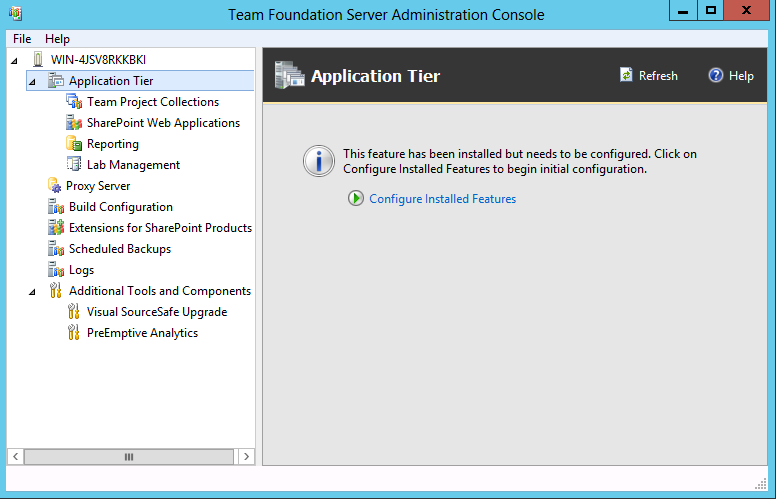
At this point you should have all the pieces of TFS, but nothing configured. TFS Administration console looks something like this:
Step 2: Restore TFS Databases
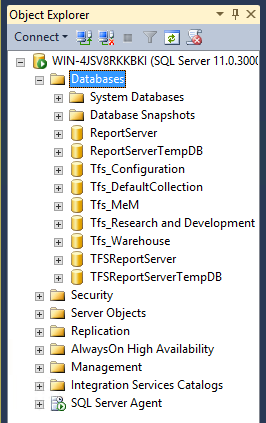
You can use the Administration console to restore your backups if made from a scheduled TFS backup. You could also use the tfsrestore.exe tool. In my case, I had some SQL Service permissions problems and disk space limitations that required me to manually restore each of the databases.
Step 3: Change Server IDs
Since I’ll be connecting to these in a non-isolated environment and I don’t want tools getting confused I am going to be safe and change server IDs. TFS uses Guids to identify Servers and Collections. Visual Studio and other tools using the SDKs will get confused regarding local settings and caches so this is a safeguard against black magic.
TfsConfig.exe ChangeServerID /sqlinstance:localhost /databasename:Tfs_Configuration
Step 4: Fix Accounts
My new server is not attached to any domain, let alone the one used for the production TFS. With this in mind, I need to update some accounts embedded in TFS.
TFSConfig.exe accounts /resetowner /sqlinstance:WIN-4jsv8rkkbki /databasename:Tfs_Configuration
TFSConfig.exe accounts /add /accounttype:applicationtier /account:tfsservice "/password:shhhhhh" /sqlinstance:localhost /databasename:Tfs_Configuration
Step 5: Configure TFS Application Tier

From the TFS Administration Console click Application Tier and then Configure Installed Features. This will give you a number of types of configuration scenarios. We want Application Tier only which well hook up to our now restored Tfs_Configuration database (and friends).
Make sure you choose the SQL Server to which you restored your databases (localhost for me). Once you get to the Application Tier settings page, this should show the service account we added in Step 4: Fix Accounts.

Everything should come out green upon Verification and you can let it rip. If not, invoke Google duckduckgo.com-fu.
Step 6: Update Remaining Settings
There will still be a number of settings that refer to the old topology.
Change the Urls to your new server:

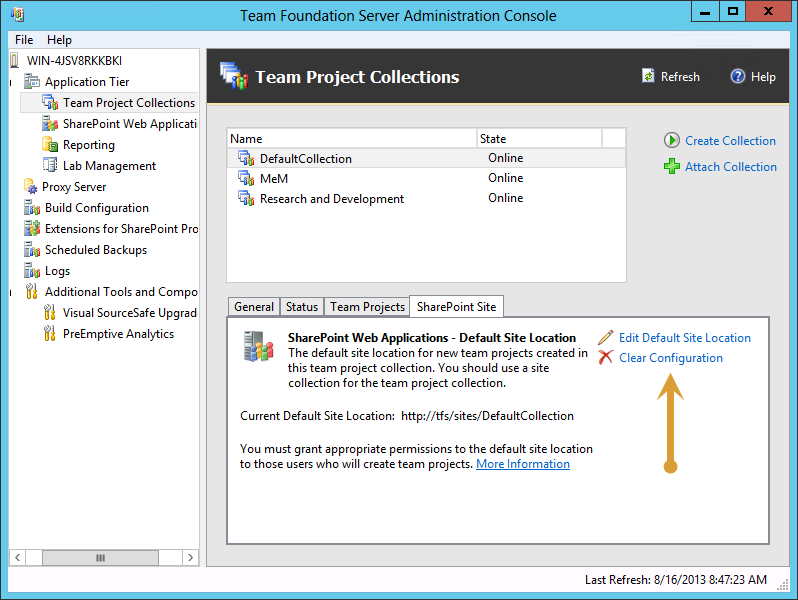
In this sandbox I have no need of Reporting Services or SharePoint. I just disabled both:

Step 7: Rest
It’s certainly not straight forward, but it’s much better than in past versions.
At this point you should be able to connect to your newly restored TPC and TPs. If you find that a previously connected Visual Studio pre-selects Team Projects that were also selected in production you likely skipped Step 3. This could result in weird behavior for you in the future against production.
Recovered from the Wayback Machine.